GTA 6 HUD Explained: How to See Your Objective, Health and Missed Dialogue
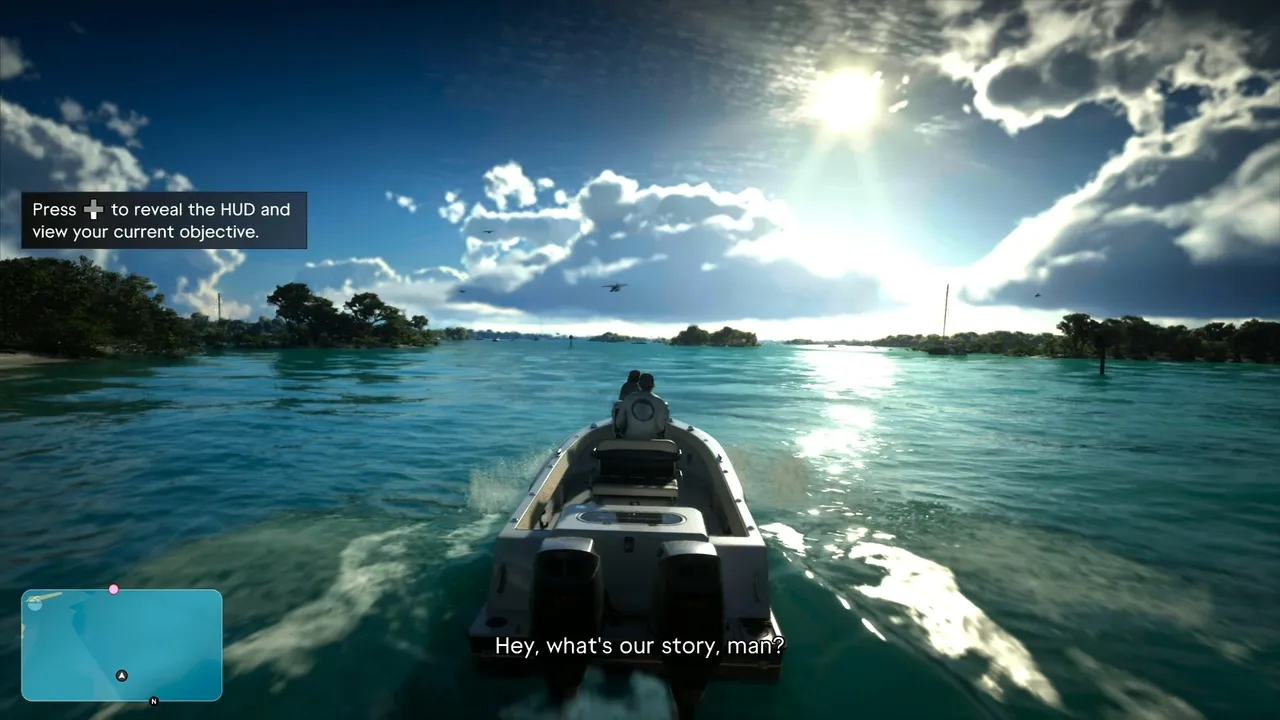
Press Down on the D-pad to reveal the HUD and see your current objective.
Health, stamina, focus and cash
The HUD shortcut also shows health, stamina, focus and your cash balance. Press Down on the D-pad to see your cash and BuckMe balances.
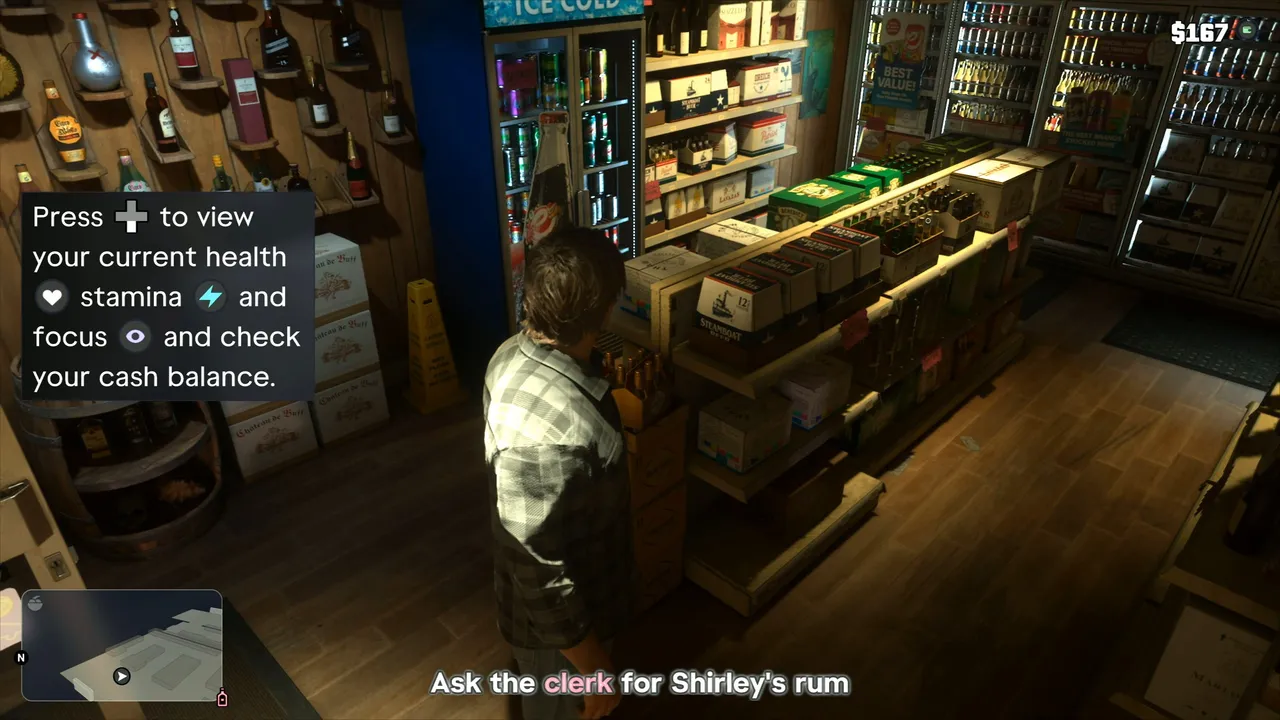
Missed dialogue: the Brief
Open the Brief from the map to catch up on dialogue, help text or objective text you missed. Brief is alongside Jason & Lucia, Map and Progress in the pause map.
Turn HUD messages on or off
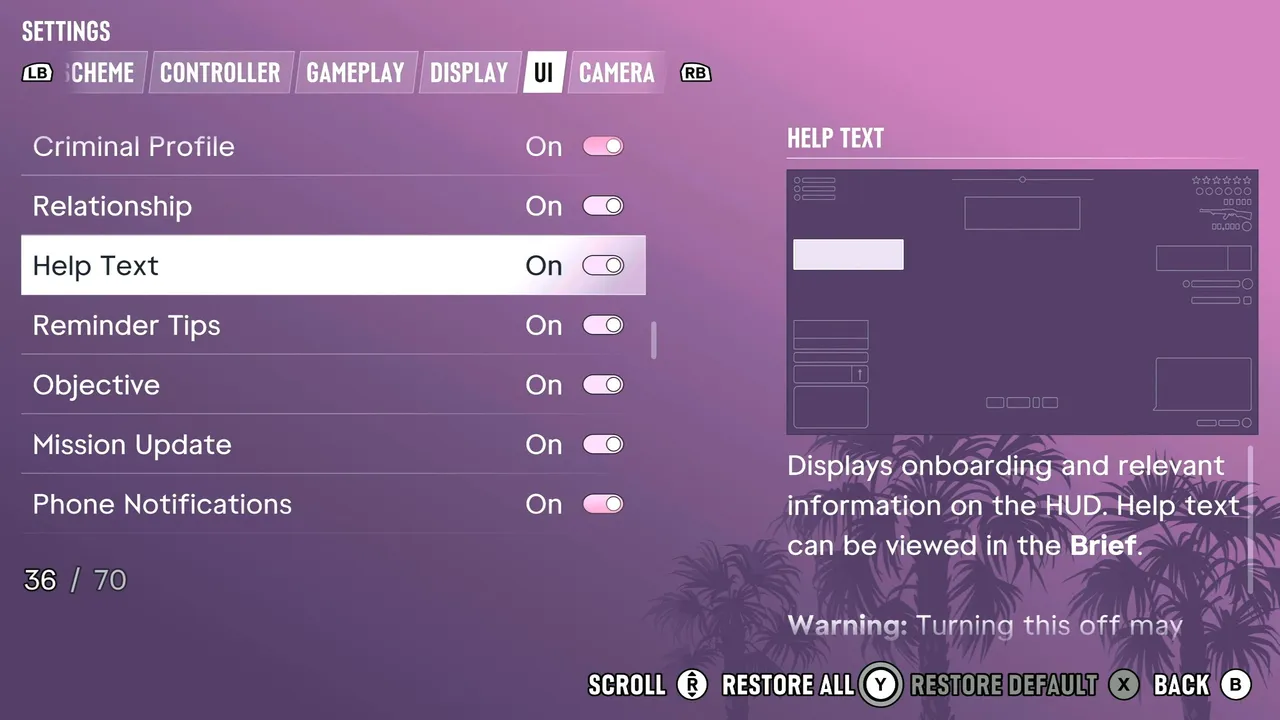
In Settings under UI, you can toggle HUD notifications for Criminal Profile, Relationship, Help Text, Reminder Tips, Objective, Mission Update, Phone Notifications, Area Discovery and Area Names. Help Text displays onboarding and other relevant information on the HUD, and you can also read help text in the Brief. The Objective setting shows your current objective on the HUD, and the D-pad shortcut brings it back into view.
The pause menu
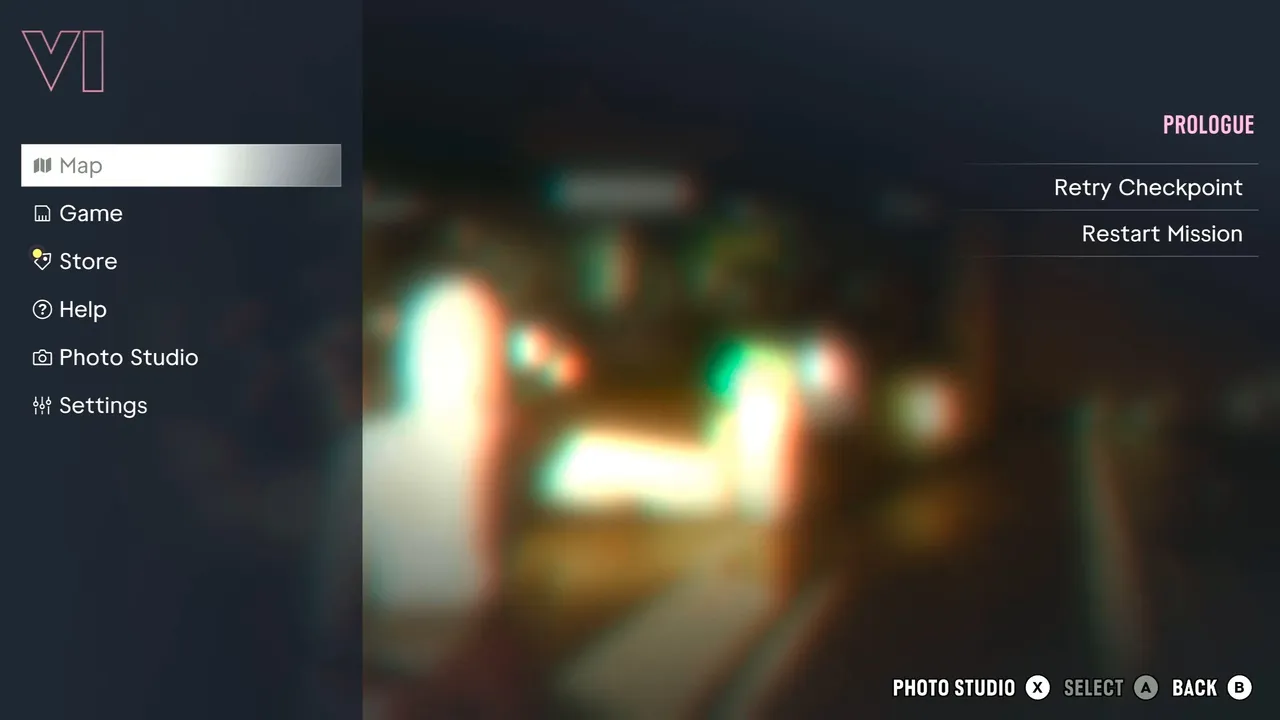
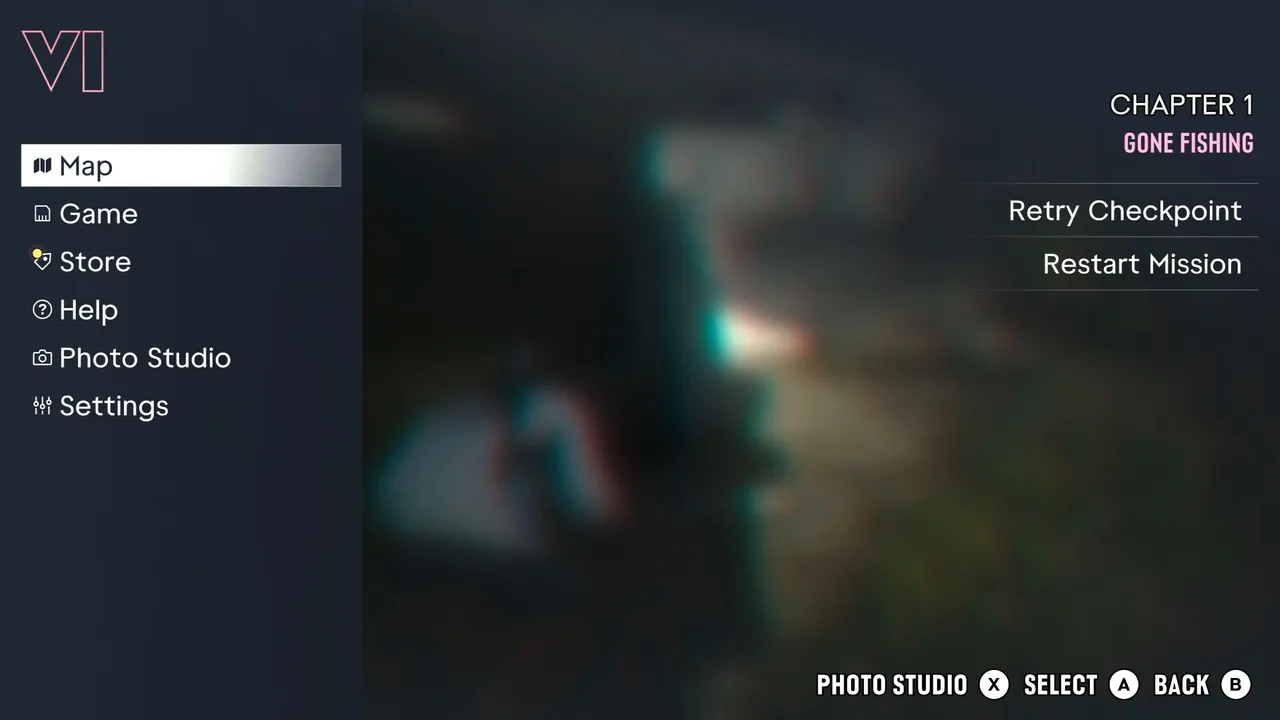
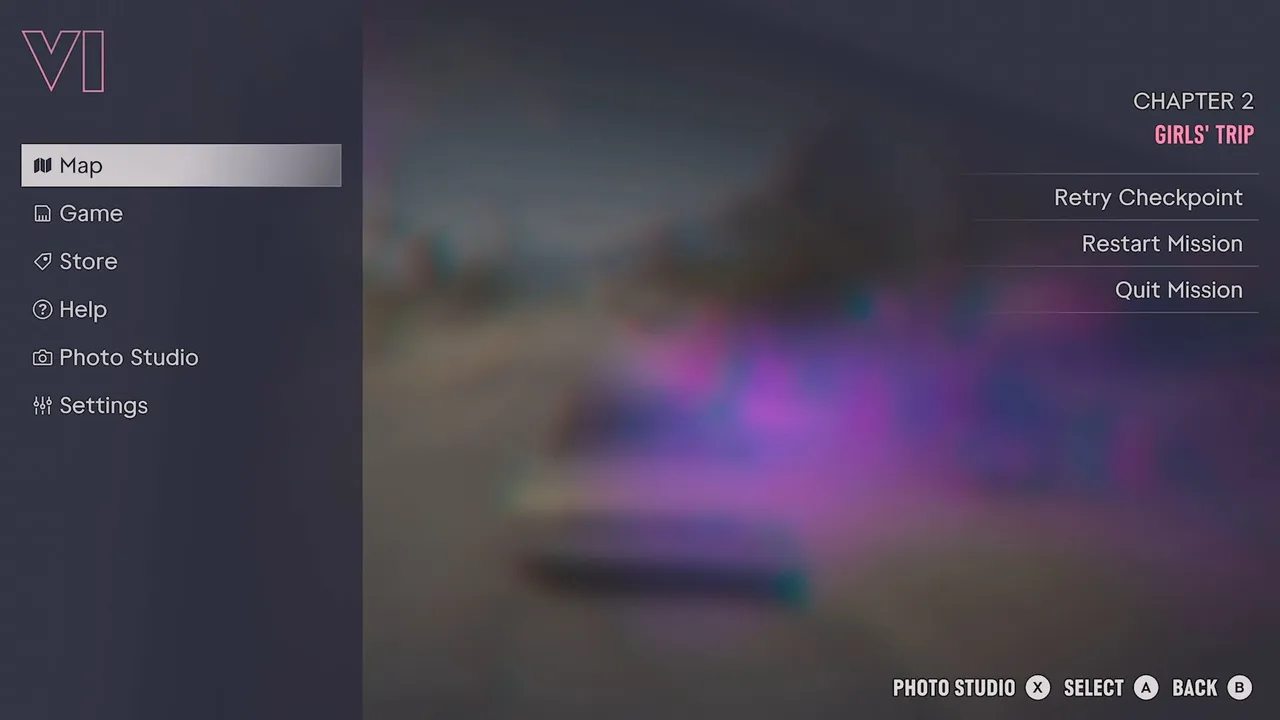
The pause menu lists Map, Game, Store, Help, Photo Studio and Settings. Look at the bottom of the pause menu for the Photo Studio shortcut.
During a mission
In Chapter 1’s Gone Fishing mission, the pause menu shows the chapter and mission name and offers Retry Checkpoint and Restart Mission. The Chapter 2 mission Girls’ Trip also offers Quit Mission in its pause menu. On the Mission Failed screen, confirming that you want to exit the mission will lose mission progress.
More in Getting started