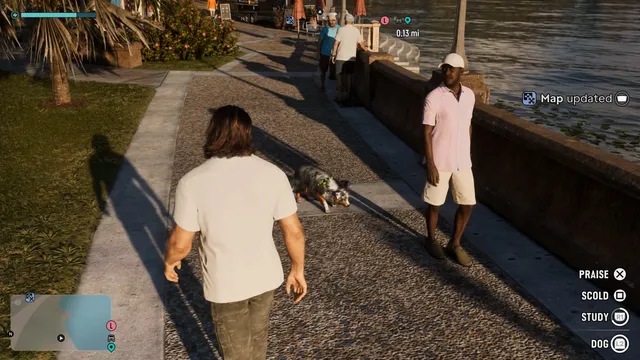
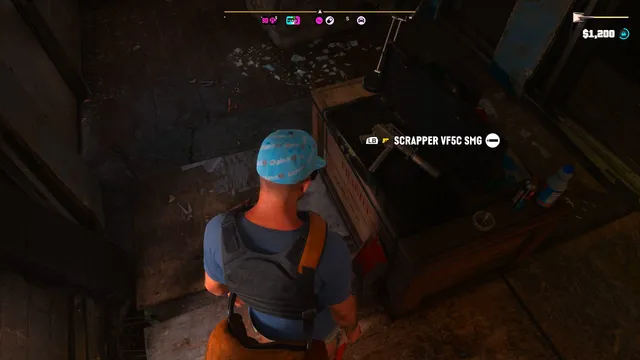
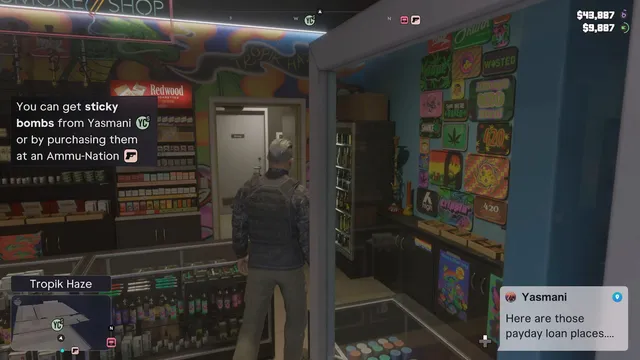
How to Keep the Minimap On in GTA 6 (and Turn On the Compass)
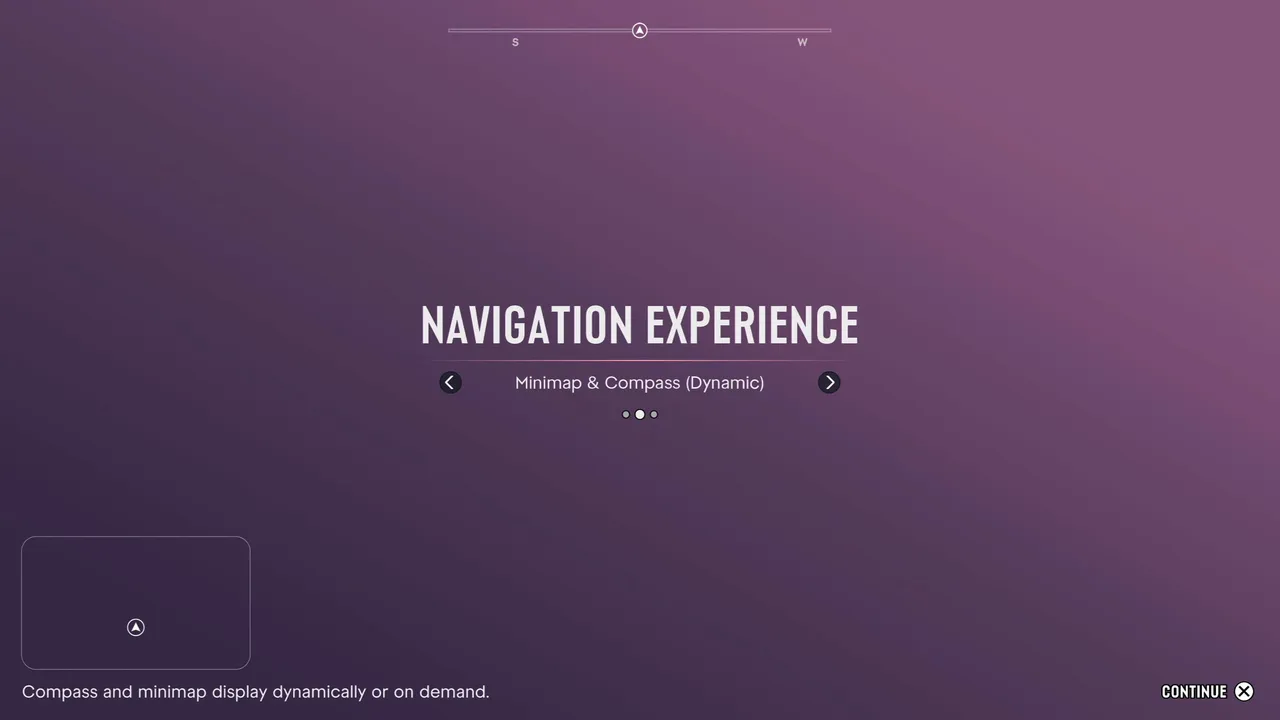
Minimap Always On keeps the minimap visible during gameplay. Minimap (Dynamic) shows the minimap when gameplay calls for it or when you bring it up on demand.
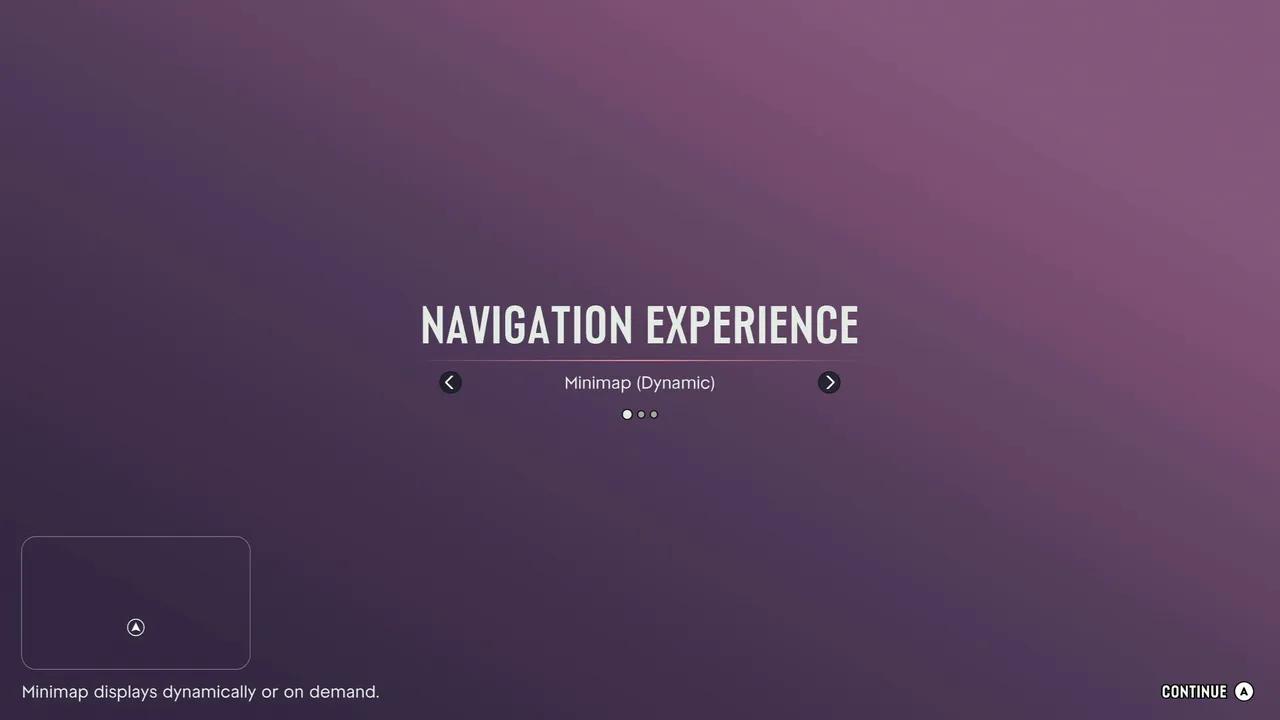
Pick it at first start
The Navigation Experience setup offers Minimap (Dynamic), Minimap & Compass (Dynamic) and Minimap Always On.
Change it later
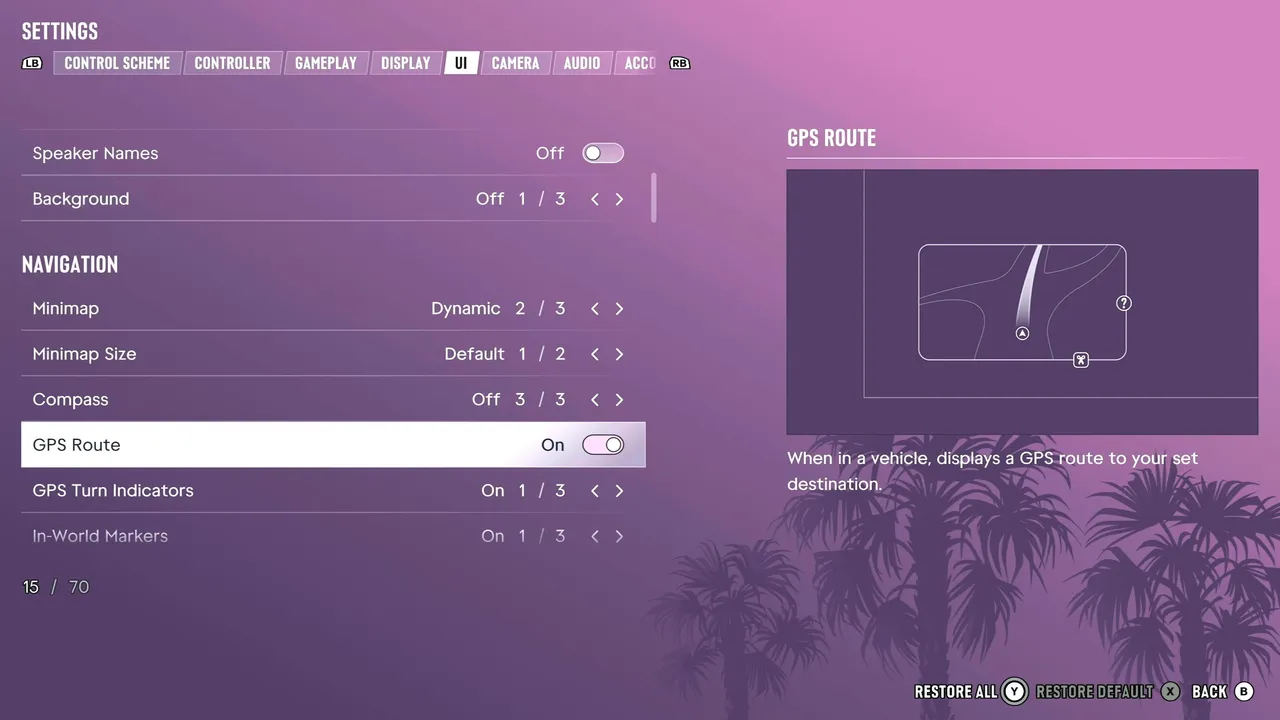
To change it later, open Settings, select UI and find Minimap under Navigation alongside Minimap Size and Compass. To show the compass, go to Settings → UI → Navigation and change Compass from Off. GPS Route shows the route to your set destination while you’re in a vehicle.
Show it on demand
With the default on-foot controls, D-pad Down is assigned to Objective / Minimap.
For services and transport stops, see the pause map’s Vehicles index guide.
Street and area names
Area Names and Street Names have separate toggles in the UI settings.
More in Getting started