GTA 6 Settings: Motion Blur, HDR, Minimap, GPS, Reticle and Subtitles
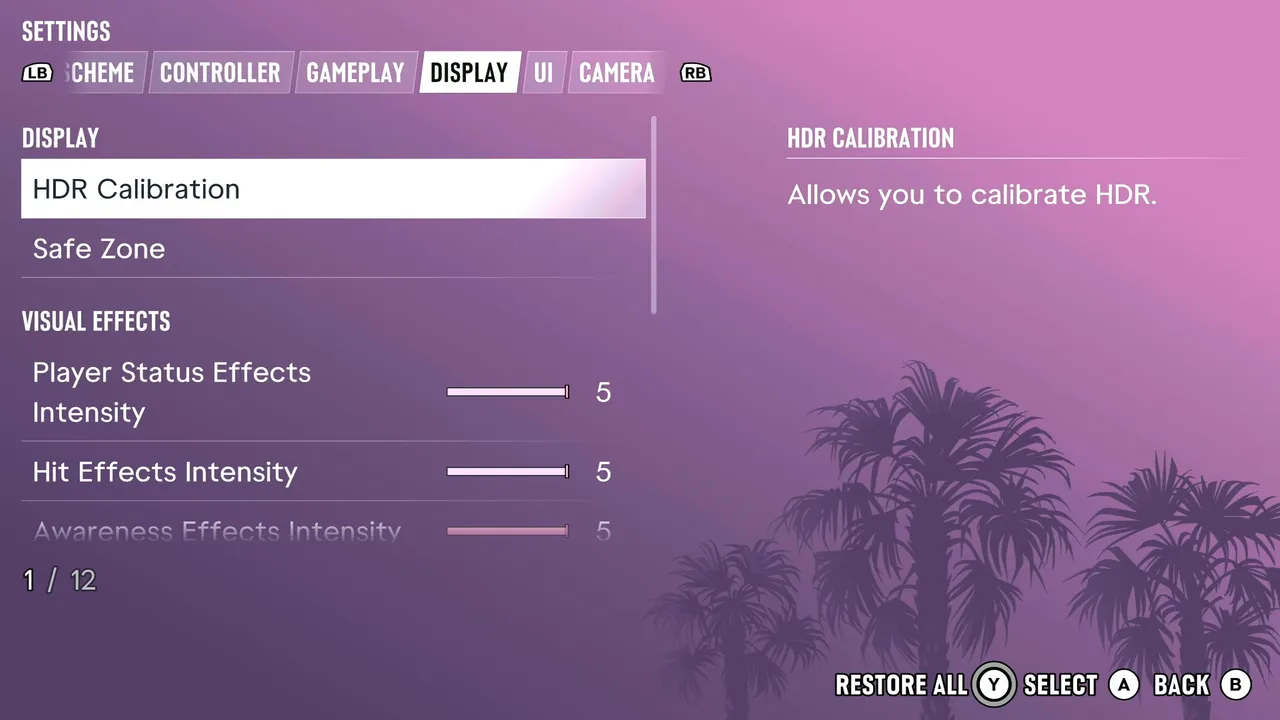
Settings has tabs for Control Scheme, Controller, Gameplay, Display, UI and Camera.
Display: motion blur, gore and HDR
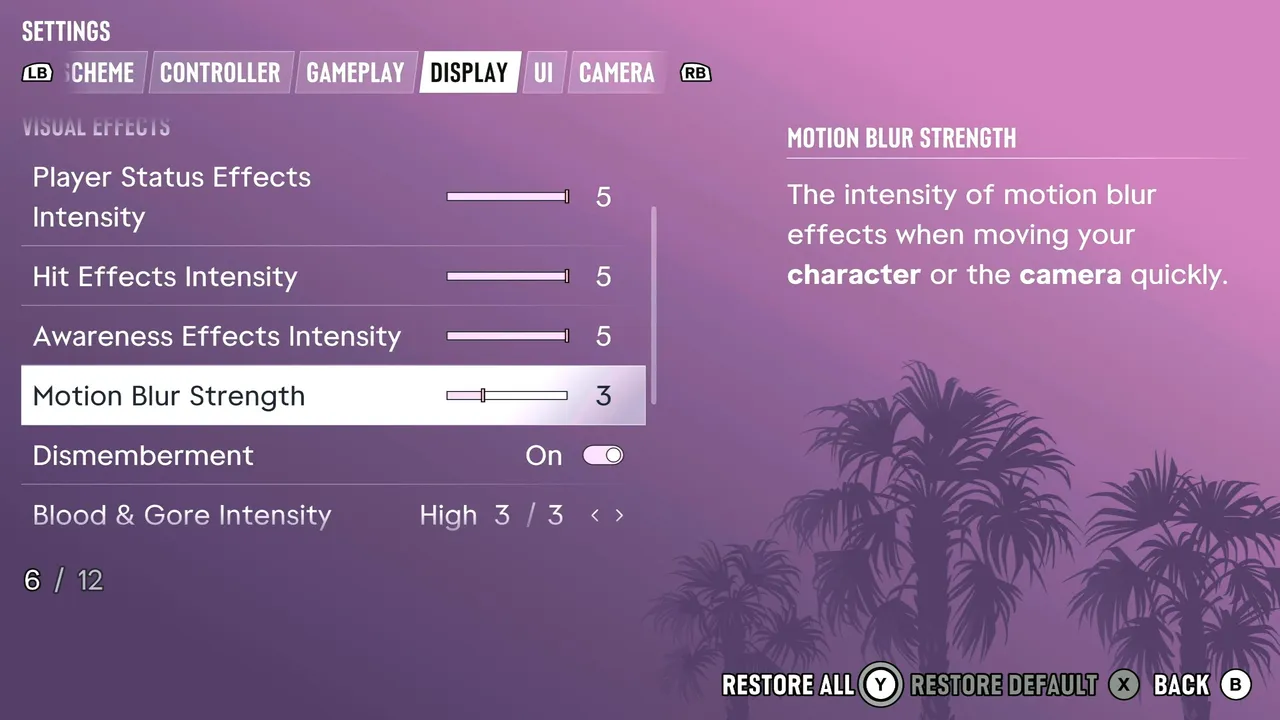
The Display tab starts with HDR Calibration and Safe Zone, followed by sliders for player status, hit and awareness effects under Visual Effects. Motion Blur Strength controls how much blur you see when moving your character or camera quickly. In Display, Dismemberment is an on/off toggle and Blood & Gore Intensity has three levels, with High as the highest.
UI: text size and markers
Under UI, Scaling & Readability has language, text size up to Extra Large, color adjustments, and separate size settings for map blips, minimap blips and in-world markers.
UI: minimap and GPS
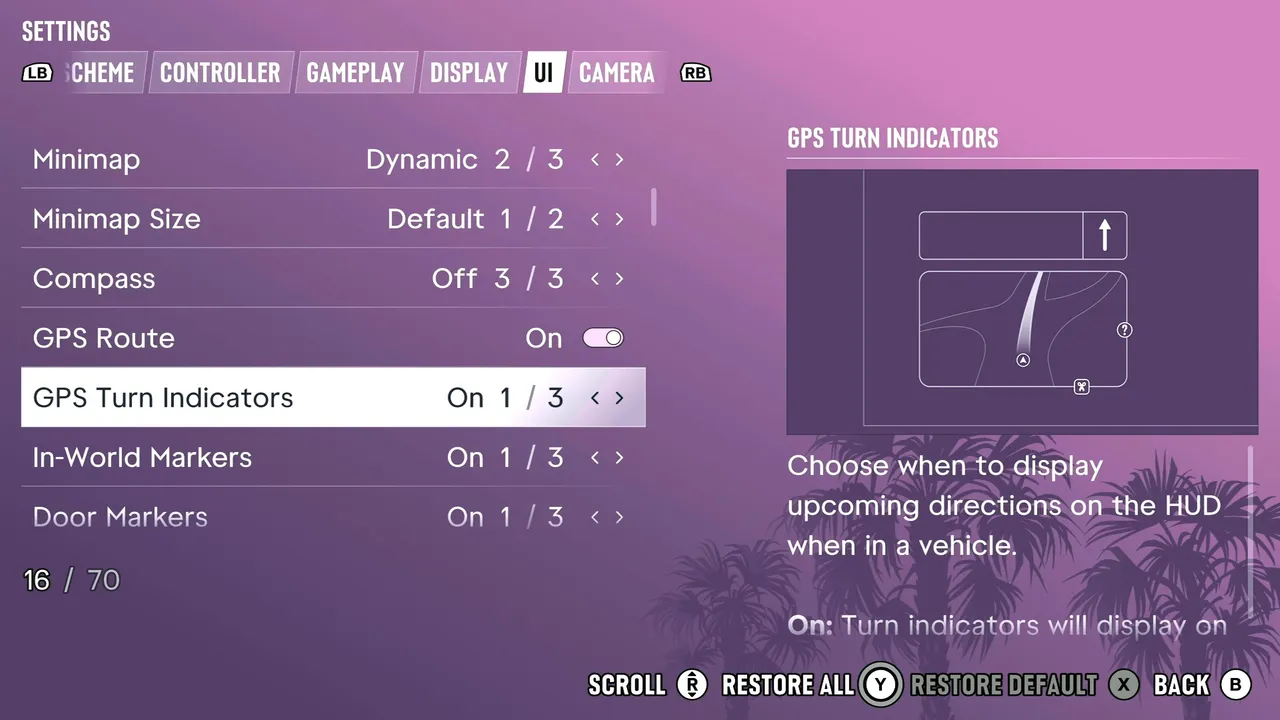
The UI tab’s Navigation section includes Minimap, Minimap Size, Compass, GPS Route, GPS Turn Indicators, In-World Markers and Door Markers. GPS Turn Indicators controls when upcoming directions appear on the HUD while you’re in a vehicle. Turn on Altimeter to display it while flying an aircraft.
UI: reticle and combat
The UI tab’s Reticle section includes Persistent Center Dot, Reticle Hit Markers, Reticle Size and Reticle Shape. Turn on Weapon Preview to show your equipped weapon on the HUD, and use the separate Ammo toggle to control the ammo display.
UI: subtitles
In Settings > UI, you can set Subtitles to Mission Only and adjust Closed Captions, subtitle and caption size, and Speaker Names separately.
More in Getting started